当前位置:网站首页>Tools and methods - Excel plug-in xltools
Tools and methods - Excel plug-in xltools
2022-07-19 03:01:00 【Night drift ice】
Start using immediately XLTools
XLTools It's a powerful Excel plug-in unit , Designed for business users . It will help you in Excel Medium faster 、 Easier to prepare data 、 Track changes and automate tasks .
Whether you just started a free trial or purchased a lifetime license , This introductory guide will help you to XLTools For work .
The first 1 Step . stay Excel Add XLTools label
take XLTools Tag added to Excel The ribbon only needs 3 Minutes or less .
1. Download the plug-in
Provide your email address , We will send you a download link immediately .
2. Install the plug-in
Follow the download link in the email , install XLTools To your computer , Like other programs .
3. open Excel
open Excel, See that the ribbon now includes XLTools label .
The first 2 Step . Take a quick look at XLTools The functional area of
XLTools The plug-in contains 20 Many different functions , To simplify your work in Excel Work in . All tools are grouped and arranged on the ribbon by task type .
Groups :Date & Time group、Clean group、Transform group、SQL Queries group、Calculate group、Export group、Mail Merge group、Automation group、Version Control group、Help group.
Hover the cursor over a ribbon button , A useful tool tip will appear . Click a button , A dialog box will open , Click a question mark link at the bottom of the dialog box , The online guide will open , It is a detailed document about a specific function .
The first 3 Step . If you need technical support , Please contact us
Our team is always happy to hear your voice ! Technical support is free , And can be obtained online . It is always timely and friendly .
If there are any questions , Or you want to share your thoughts on new features , Please let us know . Every new XLTools Versions will be improved according to user feedback and actual use .
You can contact us in many ways .
From the plug-in
XLTools In the label , Click the support button in the help group , Send feedback , Describe your problem and send a message .
On the website
Visit the support page , Fill out and send the contact form .
Email us directly
Send us an email ,[email protected].
We will be in 24 Reply to you within working hours . Or faster :)
========== ========== ==========
stay Excel Use in SQL Language
perform SQL The menu of the statement is as follows :

Usually ,Excel Tables will gradually grow into inconvenient large workbooks . Look for duplicate content 、 Filter 、 grouping 、 Complex sorting 、 Connect the tables into one, and so on , It won't be more troublesome . If you can aim at Excel Data operation SQL For enquiries , These tasks will be much easier .
XLTools SQL Queries The plug-in uses structured query language (structured query language) It's enhanced Excel:( Structured query language refers to the language for searching structured data )
- stay Excel Interface directly in Excel Run on the form SQL Inquire about
- Automatic generation SELECT and JOIN sentence
- Use JOIN, ORDER BY, DISTINCT, GROUP BY, SUM And others SQLite The operator
- Write the query in an editor with syntax highlighting .
- Process from the tree list view Excel form
Before you start using , Please put SQL Query add to Excel in .
SQL Query is XLTools Add-in for Excel Medium 20 One of many functions . Can be in Excel 2019、2016、2013、2010、 The desktop version Office 365 Work in China .

How to put your Excel The data becomes a relational database and is SQL Prepare for queries
By default ,Excel The data is simple data range. but SQL Only applicable to relational data sources . therefore , Before you start , Please ensure that the Excel ranges Format as table table( Applied table Styled ranges).
1, Use the mouse to select the SQL Inquire about data range The whole range of , On the main tab (HOME TAB ), Click on “Format as Table”, Select a table style .

2, Select table table, Open the design Design tab , namely "Table Design" TAB , Type the table name in the upper left corner , for example :"ProductID"

3, Yes, you plan to SQL Each used in the query Data range Repeat these steps .
for example , surface "RetailPrice","SalesVolume", wait .
4, It's done , Now these tables will act as a relational database , And prepare for query .
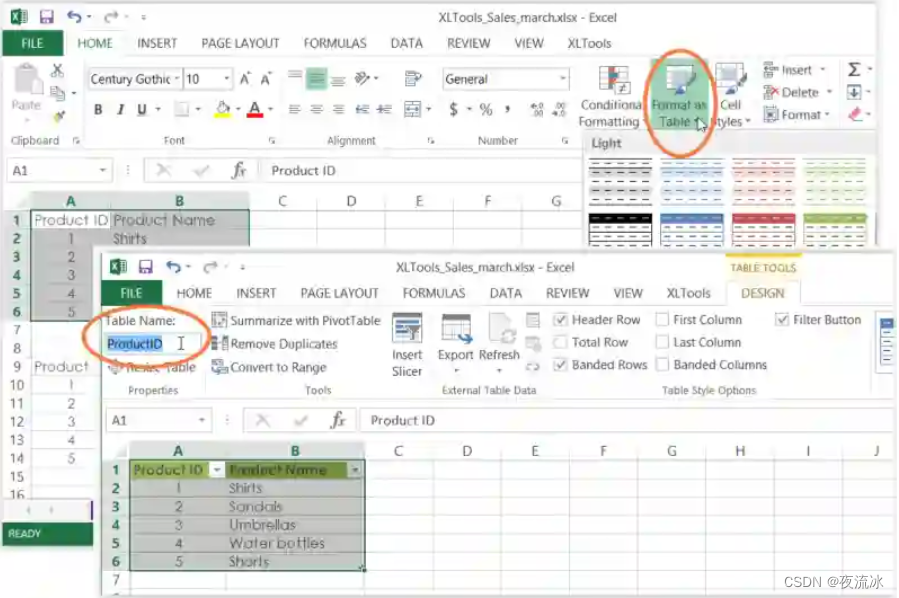
How to be in Excel Create and run on the form SQL SELECT sentence
SQL The query plug-in allows you to query Excel Table execution query . Please make sure these workbooks are open , And the required data is formatted into a named table .
1, Click on XLTools Tab ”Execute SQL“ Button , The editor window opens .
2, Find the tree view showing all available tables on the left .
Click the node to expand / Collapse the fields of the table (columns).

3, Select the entire table or a specific field .
When you check the field ,SELECT The statement will be automatically generated in the right area of the editor .
4, Choose to place the query output on a new or existing worksheet .
5, Click on ”Run“ Button , complete !

Use Left Join、Order By、Group By、Distinct And other operators SQLite command
XLTools Use SQLite grammar . be familiar with SQLite Users of can perform various queries .
- LEFT JOIN-- Connect two or more tables by sharing key columns
- ORDER BY - Sort the data in the query results
- DISTINCT - Remove duplicate data from query output
- GROUP BY - Group the data in the query results
- SUM, COUNT, MIN, MAX, AVG And other operators
How to use SQL Query plug-ins connect two or more Excel surface
If more than one Excel The table has a shared key field , You can merge them into one . Suppose you want to connect several tables , They have one more shared field "ProductID ".
1, Click on XLTools Label arrow Execute SQL, Select the fields you want to see in the merged table .
When you check the field ,SELECT and LEFT JOIN It will generate automatically .
2, Choose whether to place the query output on a new or existing worksheet .
3, Click on ”Run“ Button , complete ! The merged table appears in a few seconds .

Reference resources :
边栏推荐
猜你喜欢




随机推荐
时间复杂度和空间复杂度分析技巧
Mysql优化之索引
工具及方法 - Excel插件XLTools
5. Is the asynctool framework flawed?
rsync—远程同步
RHCE Study Guide Chapter 5 VIM editor
yolov5 ncnn 推理
Introduction to wangeditor (entry level)
[NoSQL] redis master-slave, sentinel, cluster
Redis之简单动态字符串SDS
Hcip day 1_ HCIA review
PyTorch最佳实践和代码模板
纯虚函数
RHCE8学习指南 第4章 获取帮助
内置键盘连续444
关于XML文件(六)-与JSON的区别
ncnn paramdict&modelbin
SSH Remote Control and access
第一篇博客------自我介绍
[redis] what is progressive rehash