当前位置:网站首页>How to change and reset forgotten root password in RHEL 9
How to change and reset forgotten root password in RHEL 9
2022-07-19 11:08:00 【Linux technology community】
In the installation RHEL 9 when , Installation process The preface suggests that we choose a complex password , Although the password is complex enough , But the probability of forgetting the password is very high . When your users are not even added to wheel Group time , Things will get more complicated .

This tutorial will guide you on how to 3 In this case, change the forgotten root password , We are sure that you will be able to recover your forgotten password at the end of this guide .
Method 1: stay RHEL 9 Change in root password
therefore , If you are root The user also wants to change the existing root password , You can use a single command to complete this task .
# passwd

It will ask you to enter a new root password . In order to confirm , It will ask you to enter your new password again , And will throw a message “ All authentication tokens have been successfully updated ”.
Method 2: With Sudo User changes Root password
For most people , This will be the user added to wheel Group and want to change root Password situation . thankfully , Even if you don't know your current password , You can also change your root password .
Add users to wheel Group
# usermod -aG wheel tecmint
I want to send your root Password changed to wheel Group users , Please use the given command :
$ sudo passwd root

First , Will be asked to enter your user password , then , You will be allowed to change your root password .
Method 3: stay RHEL 9 Change forgotten root password
This method is applicable to non root User or local user is not added to Wheel Group , But I still want to change or reset the forgotten root Password users .
This is the most complicated method , When using this method , Make sure to read the command twice before applying it , Because we will deal with GRUB.
The first 1 Step : Get into GRUB Edit mode
To get into GRUB Edit mode , First , We have to restart the system . When you see GRUB 2 On screen , Press 'e' Key interrupt boot process .

Once you press 'e', It will show us the kernel startup parameters .
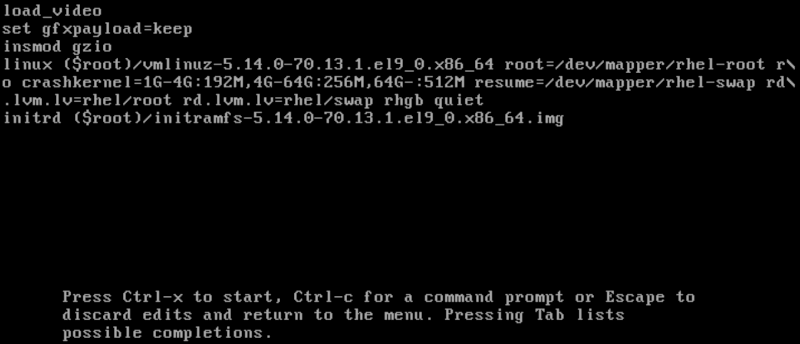
step 2: Edit kernel boot parameters
Enter the kernel boot parameters , Go to linux At the end of the first line . The easiest way is to first find out with linux The first line , Then press CTRL + e Jump to the end of this line .

After reaching the end of the line , add to rd.break And press CTRL + x Start the system with the changed parameters .

The first 3 Step : Reset forgotten Root password
You will receive an emergency mode prompt . So let's start here , We will install our drive , Get into chroot Environmental Science , And change our root password . Press Enter key , Will appear sh-5.1 Prompt for further processing .

By default , The file system is mounted in read-only mode /sysroot Under the table of contents . By using the given command , We will remount them so that they can write and change our password .
# mount -o remount,rw /sysroot
After mounting the drive , Let's get into chroot Environmental Science , This will allow us to make changes to the system files directly .
# chroot /sysroot
Last , We can use the given command to change our root password :

After changing the password , Let's enable it the next time the system boots SELinux Relabel the process .
# touch /.autorelabel
Important note : We don't run any scripts here , So please make sure you /.autorelabel Use... Correctly .
After changing the password and relabeling , Let's exit with the given command chroot Environmental Science :
# exit
Again , To exit sh-5.1 Prompt , We will use the given command :
# exit
The first 4 Step : verification Root password
To verify that we have successfully changed root password , Please log in as an ordinary user, open the terminal simulator and root Run interactive as shell , Use the given command :
$ su
Enter the newly configured root password . To print with the current user ID Associated user name , Use the following command :
# whoami

It will act as “ root ” return .
This guide shows 3 Methods , You can use these methods to change your RHEL 9 Forgotten in root password .
边栏推荐
- How does unity3d use the asset store to download some useful resource packages
- Pytoch realizes multi-layer perceptron manually
- SVN学习
- 数据库锁的介绍与InnoDB共享,排他锁
- antd 下拉多选传值到后台做查询操作
- Mysql优化系列之limit查询
- Leetcode ugly number problem solution
- Future applications and technical challenges of backscatter communication
- 最大半连通子图(tarjan缩点+拓扑排序+dp最长链)
- Avi Deployment Guide (2): overview of AVI architecture
猜你喜欢
ThreadLocal变量使用及原理

腾讯云服务器利用镜像部署WordPress个人网站!

Mysql优化系列之limit查询

LeetCode 2315. Statistical asterisk (string)
Win10 start key click no response
如何在 RHEL 9 中更改和重置忘记的root密码

Pytoch learning record 2 linear regression (tensor, variable)
Tencent cloud server uses image to deploy WordPress personal website!
![[leetcode weekly replay] 302 weekly 20220717](/img/38/446db9b4755f8b30f9887faede7e95.png)
[leetcode weekly replay] 302 weekly 20220717

Mysql 自增id、uuid与雪花id
随机推荐
PPDE第二季度迎新 | 欢迎22位AI开发者加入飞桨开发者技术专家计划!
ThreadLocal变量使用及原理
Evaluation method of machine learning model
基于“7·20郑州特大暴雨”对空天地一体化通信的思考
ue4对动画蓝图的理解
每日刷题记录 (二十六)
LeetCode 2331. Calculate the value of Boolean binary tree (tree traversal)
[PostgreSQL] PostgreSQL 15 optimizes distinct
Integrated network architecture and network slicing technology of air, earth and sea
web安全入门-部署Snort开源IDS/IPS系统
Integrated network architecture and network slicing technology of air, earth and sea
Win10 start key click no response
论文笔记:Mind the Gap An Experimental Evaluation of Imputation ofMissing Values Techniques in TimeSeries
早期单片机加密的一些方法 【评论区领取资料】
Environment variable configuration of win10
Win10 install Apache Jena 3.17
antd 下拉多选传值到后台做查询操作
Introduction to replacement technology of SAP ABAP CDs view view
Develop the first Flink app
发明闪存能赚多少钱?这是一个日本的狗血故事