当前位置:网站首页>Rhce8 Learning Guide Chapter 1 installing rhel8.4
Rhce8 Learning Guide Chapter 1 installing rhel8.4
2022-07-19 03:16:00 【Lao Duan studio】
We need to practice RHEL8 Words , Install... In a virtual machine RHEL8 The system can . You can choose the type of virtual machine according to your habits vmware workstation You can also use VirtualBox, I chose it here vmware workstation. The system we installed here is RHEL8.4 Of , The required images can be found in www.rhce.cc/img Found in .
Because it involves network configuration , Click on vmware workstation The editor in the upper left corner , Click on the virtual network editor .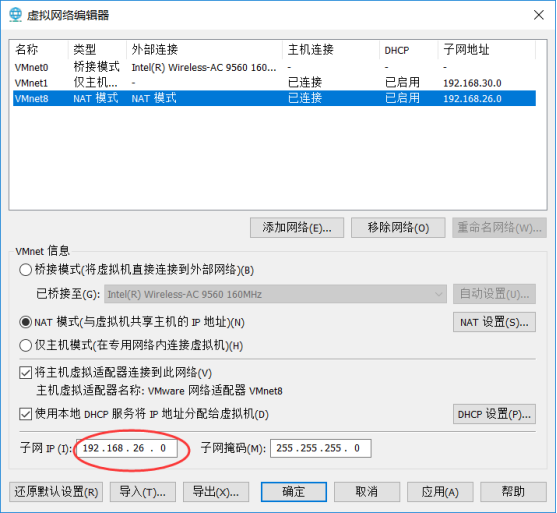
Click on VMnet8, The subnet I set here is 192.168.26.0. So when configuring network information later , Assigned to the virtual machine IP Namely 192.168.26.0/24 One in the network segment IP.
In this network segment IP Address 192.168.26.1 and 192.168.26.2 Occupied by the system , So set the virtual machine later IP Avoid these two addresses IP, And gateway and dns Must be set to 192.168.26.2.
Virtual hardware settings
stay vmware workstation top left corner file -> New virtual machine 
Select custom here ( senior ), Click next :
Compatibility options workstation 16.x, Click next 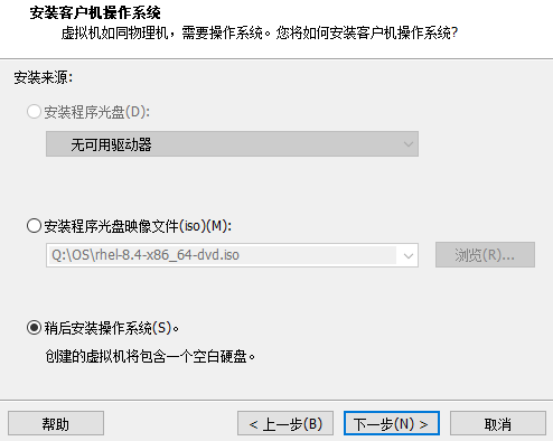
Choose here ” Install the operating system later ”, Click next 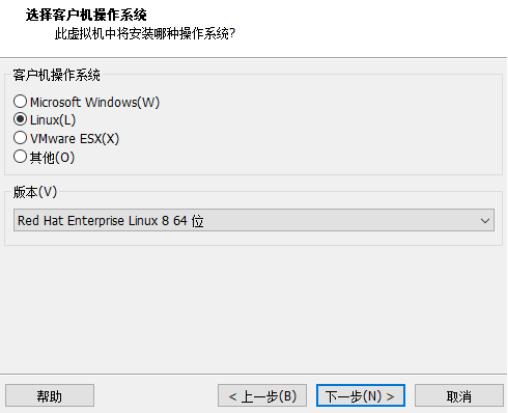
Choose here Linux, Version selection Red Hat Enterprise Linux 8 64 position , And then click next .
Name the virtual machine , It's called rhce8, Select the directory where the virtual machine is placed , Click next .
Choose here 1 star CPU,2 A nuclear , Click next .
Here the virtual machine is for 4G Memory , If the machine configuration is not enough, you can give 2G size . If the memory allocated to the virtual machine is less than 1G Words , The subsequent installation system cannot run with a graphical interface , And then click next .
Here you choose the default NAT, Click next .
choice LSI Logic(L), Click next .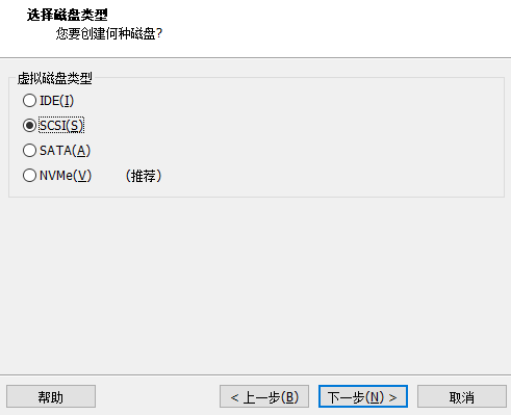
Hard disks with different interfaces , The way of system representation is different .
IDE Hard disk of interface , Will hd To express , The first hard disk is hda, The second hard disk is used hdb To express . Add a number after the hard disk name to indicate the number of partitions , For example, the first hard disk and the third partition are used hda3 Express .
SCSI/SATA Hard disk of interface , Will sd To express , The first hard disk is sda, The second hard disk is used sdb To express . Add a number after the hard disk name to indicate the number of partitions , For example, the first hard disk is used for the first partition sda1 Express .
Here we don't choose what it recommends NVMe, Choose... Here SCSI, Click next .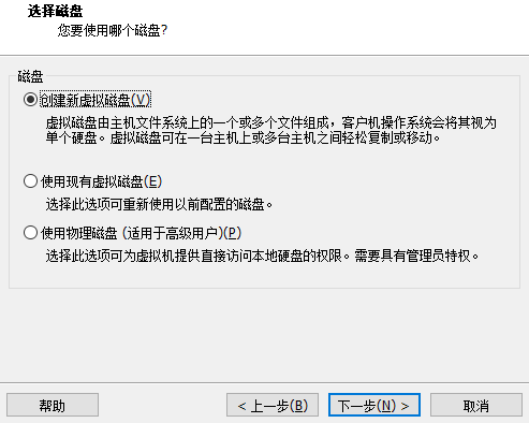
Choose create new virtual disk , Click next .
Here's the size 100G, As long as you don't choose " Allocate all disk space now ", It will not occupy the hard disk of the physical machine 100G Spatial , Choose to store the virtual hard disk as a single file , Click next .
Click directly to next .
Click here to customize the hardware .
Deleting unwanted hardware includes USB、 The printer 、 Sound card, etc , Click New CD/DVD, Select " Use ISO Image file ", Browse to your own RHEL8.4 Mirror image , Click close , Jump to the following picture .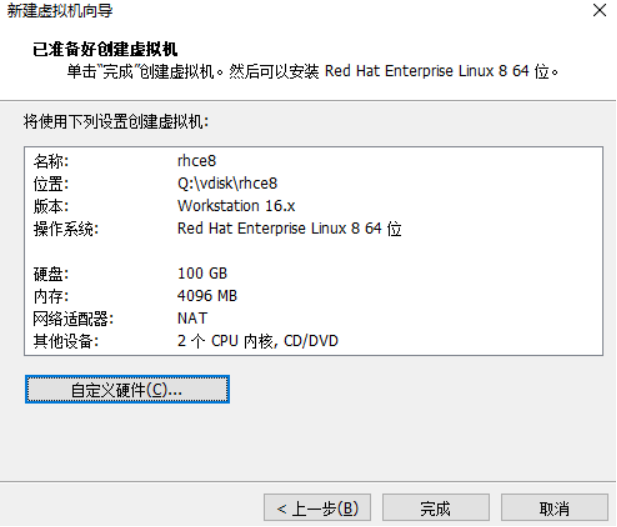
Click finish .
Install virtual machine
Turn on virtual machine , Click the mouse into the virtual machine , Select the first option through the up and down keys on the keyboard "Install Red Hat Enterprise Linux 8.4".
enter , Wait for a while, and then the language option appears .
choice chinese –> Simplified Chinese , Click to continue .
On the configuration page, you can configure the time and date , Partition , Configure network and settings root Password etc. .
First click " Time and date ", Choose Asia - Shanghai , Then click on the top left corner to finish , Return to the above figure .
Click on the root password below 
This root password is this system root Password ,root It's the administrator , Enter the password twice and click finish in the upper left corner , If the password setting is too simple, you will be prompted to press twice . Click Finish to return to the previous interface .
Click " Create user "( If not shown , Just scroll the mouse roller ).
Here is how to create ordinary users , Enter the user name and password according to the above figure , Click finish in the upper left corner . If you enter a simple password , Then the system will prompt that you need to click twice to complete . Then the interface returns to the previous interface .
Click Install destination , Choose Custom .
Then click Finish .
Select standard zone , Then click... On the lower left side +
Enter "/" , Expected capacity fill 50G, Click Add mount point .
Click... On the lower left side again +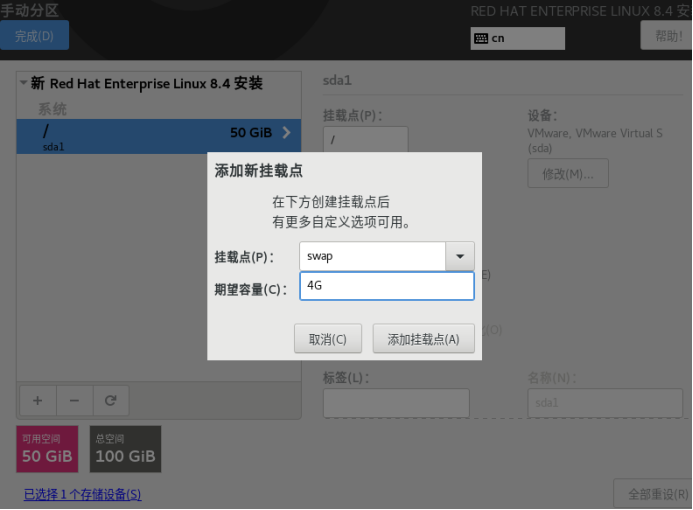
Mount point location selection swap, Expected capacity fill 4G, Click Add mount point . Then click finish in the upper left corner .
Click accept changes , Then the interface returns to the upper interface .
Click on network and hostname .
Enter the hostname on the lower left server.rhce.cc Click application , Click on the top right corner Ethernet On the right side open / close Button to open the network . Click the configuration at the bottom right 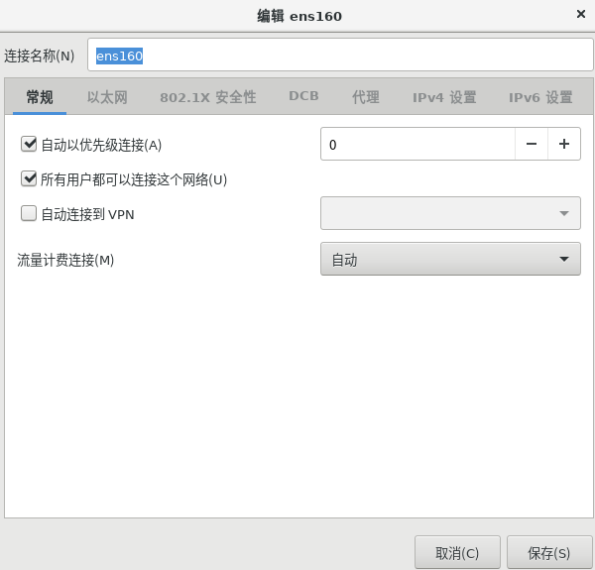
Click general , Select the one above Automatically connect with priority , Click save , Then click on the top left corner to finish . Then the system returns to the previous interface .
Click Start installation .
At this time, the system starts to install .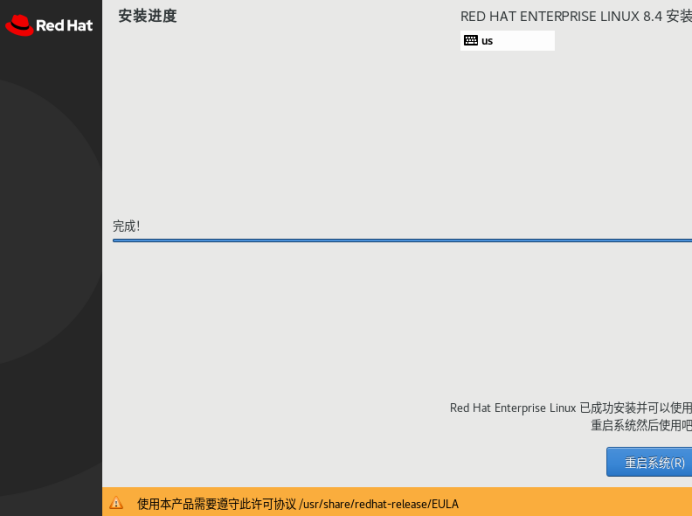
After installation , Click restart system , Then the system will restart automatically .
After restart, you will go to the license agreement interface , Click license agreement License not accepted , Check the bottom left I agree to the license agreement , Click finish in the upper left corner , Then click the end configuration in the lower right corner , The system jumps to the login interface .
Landing system

Click on lduan, Input password 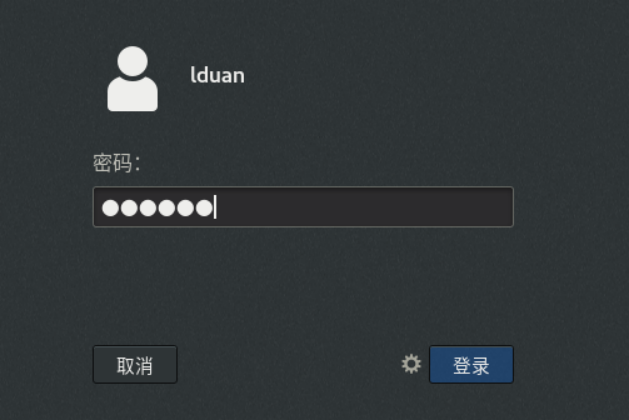
Click login .
Click on... In the upper right corner Forward 、 Forward 、 Forward 、 skip ,
Click to start using Red Hat Enterprise Linux(S). Then close the pop-up window .
Uppermost The system does not register pop-up , Put the mouse over the pop-up window and there will be a close button in the upper right corner , Can be closed .
Click red hat in the upper left corner logo, Then click the Jiugong grid on the lower left 
Click the setup button 
Click the power supply on the lower left , Blank screen on the right , Choose never , Used to close the screensaver , Then close the settings window .
At this point, the system is installed .
边栏推荐
- Transaction and storage engine in MySQL database
- 工具及方法 - Excel插件XLTools
- 2022-07-16:以下go语言代码输出什么?A:[];B:[5];C:[5 0 0 0 0];D:[0 0 0 0 0]。 package main import ( “fmt“ )
- Examine your investment path
- SQL classic exercises (x30)
- Affine transformation implementation
- [MCU simulation] (XIX) introduction to assembly, assembly instructions, pseudo instructions
- Obvious things
- Specifications, multi table query basis
- Built in keyboard continuous 444
猜你喜欢

MySQL log management and full backup incremental backup and recovery

Data source object management (third-party object resources) & load properties file

A Youku VIP member account can be used by several people to log in at the same time. How to share multiple people using Youku member accounts?

【人脸识别】基于直方图Histogram实现人脸识别附matlab代码

Wechat applet -- Summary of problems in the actual development of taro framework

【剑指Offer】31-35题(判断一个序列是否是栈的出栈序列之一,层序打印二叉树以及分行打印、每行逆着打印),判断序列是否是二叉搜索树的后序遍历路径,二叉树找一条权值为K的路径,复制复杂链表

Yolov6 learning first chapter

樂視還有400多比特員工?過著沒有老板的神仙日子 官方出來回應了...

JDBC connection to MySQL database

MySQL面试题(2022)
随机推荐
【单片机仿真】(十九)介绍汇编、汇编指令、伪指令
多表查询——案例练习
ncnn paramdict&modelbin
SQL classic exercises (x30)
JDBC连接Mysql数据库
[PHP] tp6 multi table connection query
关于XML文件(六)-与JSON的区别
Automatic assembly & set injection
[MCU simulation] (XIV) instruction system bit operation instructions - bit data transmission instructions MOV, bit variable modification instructions
This is a mathematical problem
Ncnn allocator memory allocator
Built in keyboard continuous 444
Yolov5 ncnn reasoning
多锻炼身体有好处
MySQL optimized index
[MCU simulation] (VI) addressing mode - index addressing and relative addressing
[MCU simulation] (XXI) dB (define byte) - define byte
Mysql多表查询
Polynomial interpolation fitting (II)
[MCU simulation] (I) proteus8.9 installation tutorial