当前位置:网站首页>Horizon 8 test environment deployment (7): app volumes deployment
Horizon 8 test environment deployment (7): app volumes deployment
2022-07-18 20:00:00 【51CTO】
App Volumes summary
Reference documents :
https://techzone.vmware.com/resource/app-volumes-architecture#load-balancing
App Volumes It is a method of integrating user applications or user data with the underlying OS A technology of separation . This function can package applications and their related library files , Very similar to container mirroring , After packaging, it becomes one by one Volume(Volume Will vmdk Form storage of ), When it comes to authorizing users Volume after ,App Volumes Manager Automatically called vCenter The interface mounts the corresponding vmdk.
Through this function, the decoupling of application and user desktop can be realized , Users do not need to install software by themselves , After the administrator completes the application template, it can be distributed to the user .

App Volumes The most important component is App Volumes Manager,App Volumes Support to configure multiple App-v Manager To provide high availability , More than one Manager Point to the same SQL database (SQL It is recommended to deploy the database with high availability architecture ).App-v At the same time with vCenter、AD Interact , And vCenter The connection is used to mount Volume, Reading and writing Datastore etc. , And AD The connection is used to read user groups 、 add to Volume to grant authorization 、 Monitor user login events .App volumes And Horizon There is no correlation between other components .
The following figure is an official App Volumes High availability deployment architecture diagram :

AppV Deploy and initialize
Deployment process
1. Deploy App Volumes Manager;
2. Do initialization configuration , And vCenter、AD Connect ;
3. stay Guest OS template Installation on App Volumes Agent, For from Guest OS Monitor application installation , And encapsulate the application ;
4. stay Horizon VDI/RDS Installed on the host App volumes Agent, Used to configure mounting to users / The host Volumes;
5. Grab the application from the template machine and package it into Volumes;
6. Assign to users or virtual machines Volumes.
install APP Volumes Manager
Installation premise :
- It has been deployed and configured Windows Server, Normal domain addition ;
- In case of production deployment , External high availability has been installed SQL server;
In order to test simply , Use a single node App Volume Manager And built in SQL Express database .
by Windows Server mount App Volumes install ISO:

Click Install , Choose to install App Volumes Manager:

For the convenience of testing, the built-in SQL server express database :


Set allowed 80 and 443 Port login :
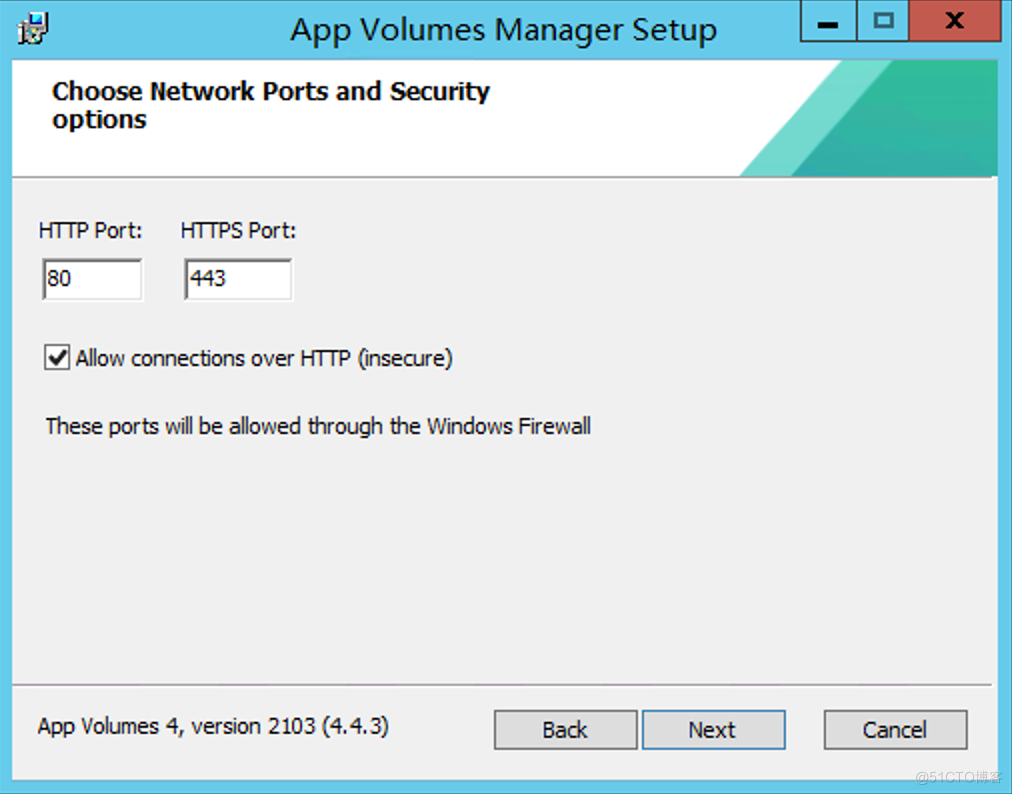


Wait for installation to complete , The service starts automatically .
APP Volumes initialization
Web access App-v Manager, Follow the wizard to initialize :

Input License :

Enter the domain name and administrator password :


Assign administrator role :

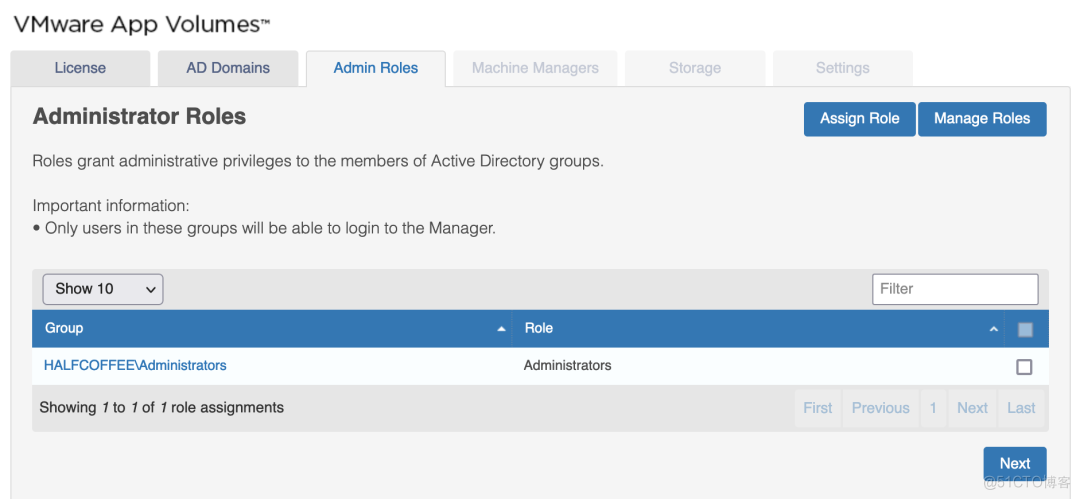
add to vCenter Server:


choice App Volumes Storage needed :


take Volumes Upload the template to storage :

by RDS Server configuration App Volumes
App Volumes Support to RDS Shared desktop or ordinary desktop ( for example Win10 desktop ) Use , When RDS When using shared desktop , Need to put Volumes Assigned to RDS virtual machine ; And give Win10 When using the desktop , Direct will Volumes Assign to users .
in addition , Generated by different versions of the operating system Volumes Cannot be applied to other operating systems , in other words , How many kinds of environment Windows, Just how many App Volumes Formwork machine .
This chapter explains how to RDS Desktop configuration App Volumes.
Install for formwork machine Agent
In the installation Agent front , You need to add the template machine to the domain first :

take App Volumes Installation ISO Mount to virtual machine :

function ISO The installation program in , Follow the wizard to install App Volume Agent:


Fill in here App Volume Manager After load FQDN:
( We will explain in the next article App Volumes Load balancing of )

Other options remain default , Complete the installation . stay Agent After installation , stay Computers You can see this machine :

by RDS The server grabs app
stay Inventory Create a new Application:

Fill in Application name :

Fill in Application Next Package The name of :

Check the created Packages, Click on Package:

Choose the App volume 2012 Formwork machine :

Click on Start Packaging:
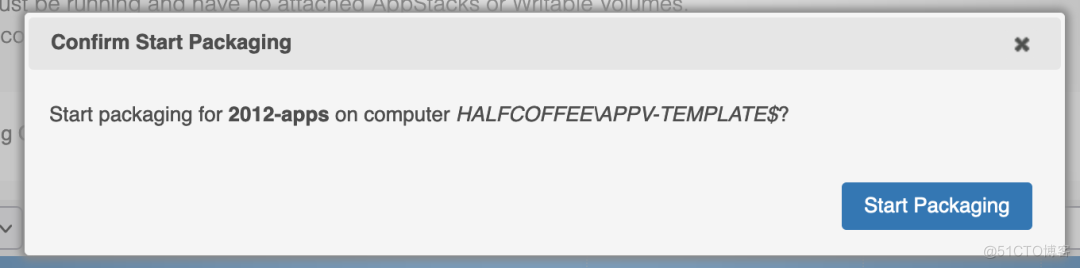
Then the following window will pop up in the lower right corner of the template machine :

Prepare the installation package of the application on the template machine in advance , And then click OK Start crawling .
Then run the installation package , Normal setup ( You need to install the application to the system instead of the current user ).

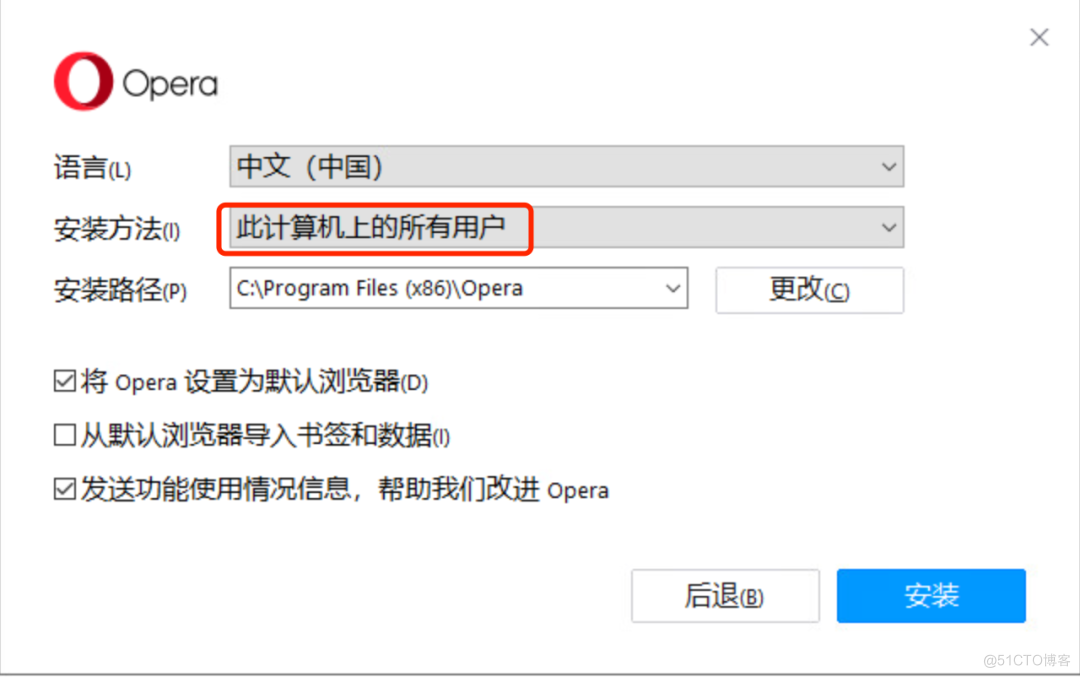

After installation , Click on Yes Complete the installation :
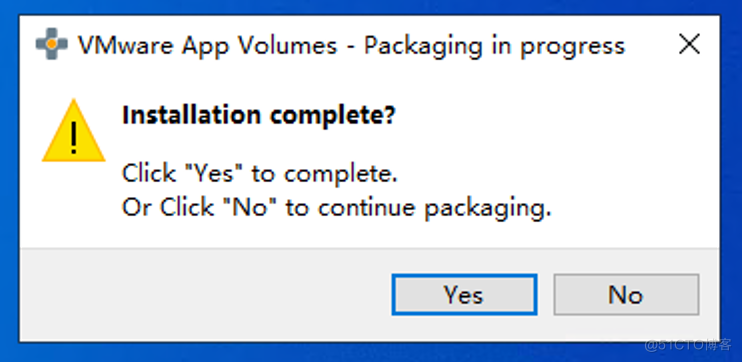
Confirm the name and version of the program :


Prompt to restart the operating system :

Wait for the restart to complete , Prompt that the package is successful :

Back to App Volume Manager Interface , See the status in the figure below , Click on Set Current Enable :


Assign apps to RDS host
stay “Directory>Computers” Find the target in RDS virtual machine , Click on “Assign Application”:
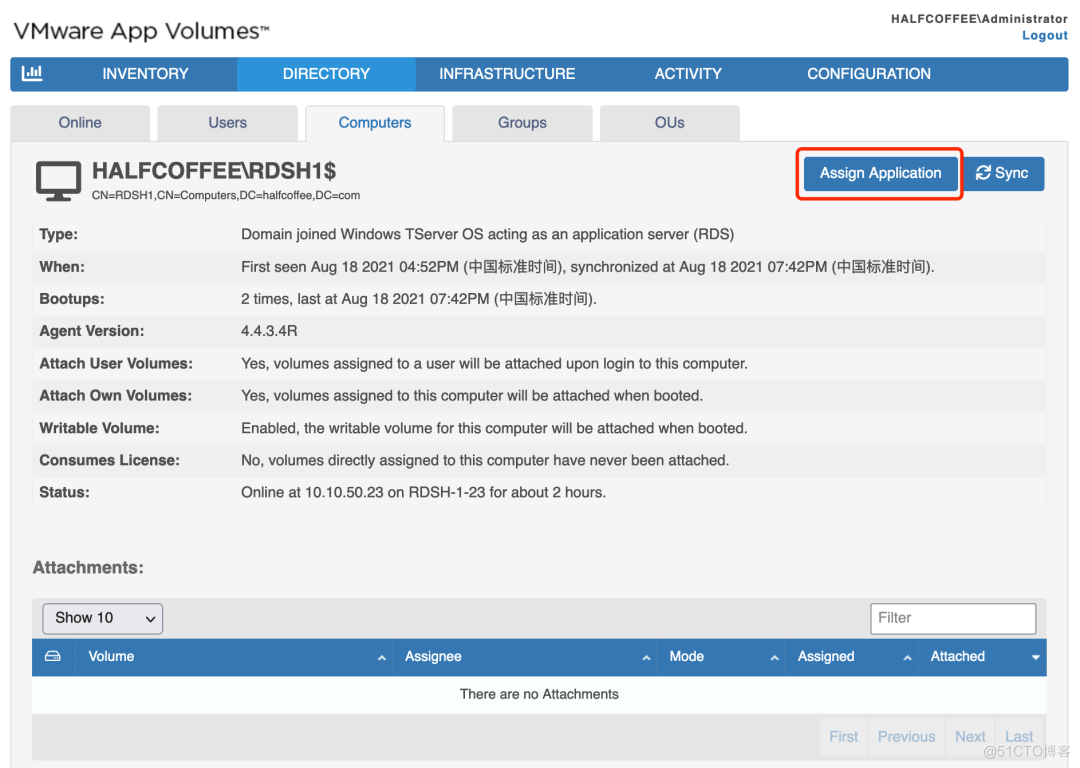
Select the one captured in the previous chapter Application:


restart RDS The server ( take Volumes When directly assigned to a virtual machine , Must restart to take effect ):

adopt Horizon Client Log in to the desktop for testing :

Users can normally see App Volumes application :

by Windows 10 Desktop configuration App Volumes
This chapter explains how to configure a normal desktop App Volumes.
by Win10 Desktop grab app
Most processes are related to RDS Host consistency , The steps will not be repeated here .
Assign apps to users
stay “Inventory>Applications” Find the application to assign , Click on “Assign”:

Select the user group to assign :
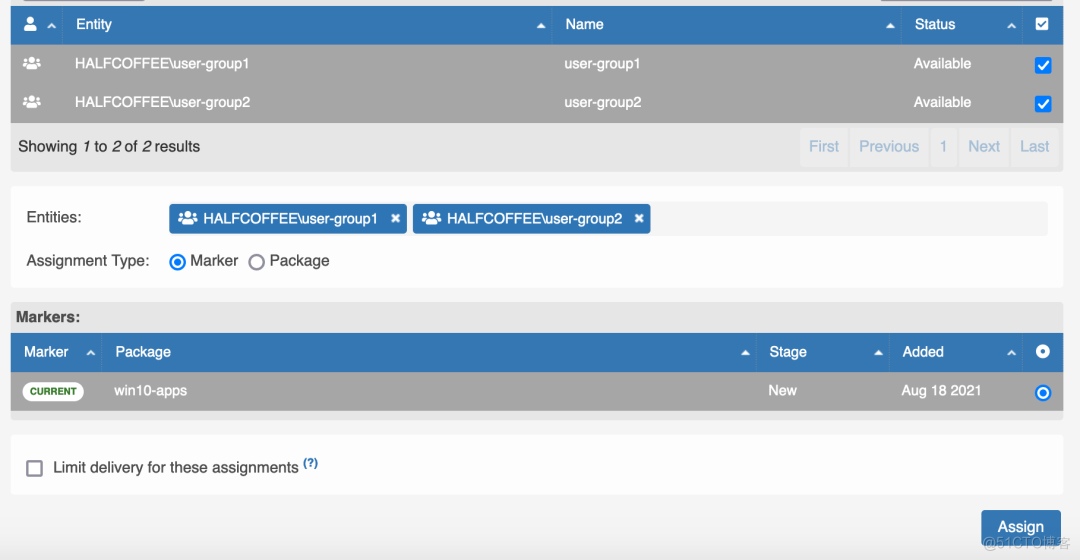

adopt Horizon Client Log in to the desktop for testing ( take Volumes After assigned to users , Users need to log out and log in again to see Volumes):

The end of this paper
Pay attention to WeChat public number “NSX It's lovely ”, The background to reply “Horizon” You can get the download link of this article and related media .
边栏推荐
- 【AI应用】Intel(R) Xeon(R) Silver 4216 CPU @ 2.10GHz的详情参数
- 12.单调栈——解决接雨水和柱状图中的最大矩形等问题
- Use and principle of CAS
- String related code questions -- C language
- 【Word】插入公式显示灰色,失效解决
- Activity--startActivityForResult()-返回数据给上一个活动方法记录
- Zkapp transaction snark in Mina
- Mina中的zkApp交易snark
- synchronized和Lock的区别
- 第一个大规模中文视频多模态相似度数据集
猜你喜欢

Leetcode's 82nd biweekly match

11.滑动窗口的最大值——重要结构双端队列

第二篇 FPGA数字信号处理_并行FIR滤波器Verilog设计

VIVADO 以太网接口(SGMII转GMII接口)

6.线程取消

wallys/Qualcomm IPQ8072A networking SBC supports dual 10GbE, WiFi 6

Horizon 8 测试环境部署(8): App Volumes Managers 负载均衡配置

leetcode 43. 字符串相乘 (字符串+模拟)
![[200 opencv routines] 232 Spectral method of feature description](/img/54/77f420654cc49723fbdbe845023ec8.png)
[200 opencv routines] 232 Spectral method of feature description
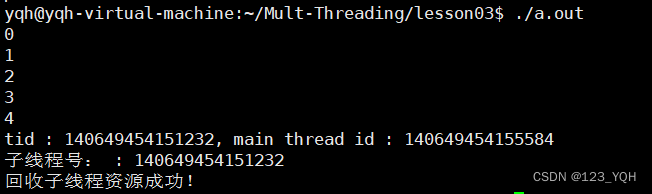
4.连接已终止的线程(回收线程)
随机推荐
Payment transaction snark in Mina
12.单调栈——解决接雨水和柱状图中的最大矩形等问题
Android day 26: database two
安卓 Day 27 :数据库One
Ci521 domestic 13.56MHz reader chip replaces cv520 compatible
4. Connect terminated threads (recycle threads)
[机缘参悟-45]:鬼谷子-第九权篇-因人说话,投其所好
1.2.2-SQL注入-SQL注入语法类型-报错注入
vivado之COE文件使用方法
[LeetCode]剑指 Offer 50. 第一个只出现一次的字符
JS array element duplication check
马斯克76岁父亲与继女生子,华强北又出一个芯片IPO,原蚂蚁副总投身AI制药,今日更多大新闻在此...
Activity--startActivityForResult()-返回数据给上一个活动方法记录
对话印奇:我们所坚持的不会改变,旷视跳出企业科研“周期律”
图论
VIVADO 以太网接口(SGMII转GMII接口)
Window10 Remote Desktop Connection prompt: "unable to locate the program input point: \u cxxframehandler4 in the dynamic link library" error solution
6.暴力递归转动态规划
solidity的代码
Kernel management of Jupiter notebook