当前位置:网站首页>小程序云开发表单提交并在页面中获取数据
小程序云开发表单提交并在页面中获取数据
2022-07-17 05:05:00 【小青年一枚】
当遇到表单录入时,录入好的数据提交保存到云数据库后,在其他页面展示刚提交到数据库的数据时,今天自己尝试做一遍。
表单页面:
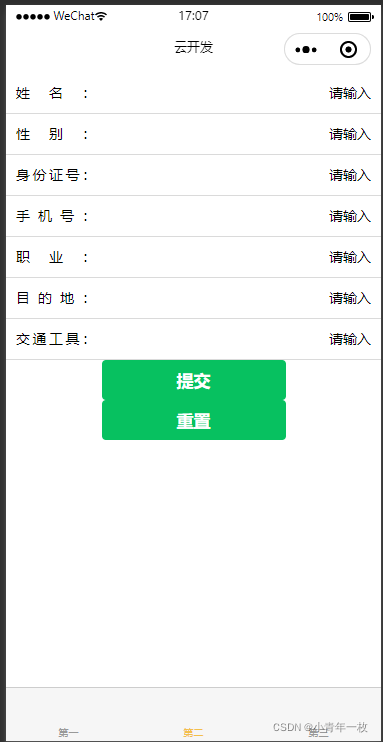
代码如下:
<view class="container">

  <form action="" bindsubmit="addBtn">
    <view class="view-li">
      <label>姓名:</label>
      <input type="text" name="name" placeholder="请输入" placeholder-class="color" class="ipt" value='{
   {form_info}}'></input>
    </view>
    <view class="view-li">
      <label>性别:</label>
      <input type="text" name="gender" placeholder="请输入" placeholder-class="color" class="ipt" value='{
   {form_info}}'></input>
    </view>
    <view class="view-li">
      <label>身份证号:</label>
      <input type="idcard" name="idcard" placeholder="请输入" placeholder-class="color" class="ipt" value='{
   {form_info}}'></input>
    </view>
    <view class="view-li">
      <label>手机号:</label>
      <input type="number" name="phoneNub" placeholder="请输入" placeholder-class="color" class="ipt" value='{
   {form_info}}'></input>
    </view>
    <view class="view-li">
      <label>职业:</label>
      <input type="text" name="occupation" placeholder="请输入" placeholder-class="color" class="ipt" value='{
   {form_info}}'></input>
    </view>
    <view class="view-li">
      <label>目的地:</label>
      <input type="text" name="destination" placeholder="请输入" placeholder-class="color" class="ipt" value='{
   {form_info}}'></input>
    </view>

    <view class="view-li">
      <label>交通工具:</label>
      <input type="text" name="vehicle" placeholder="请输入"  placeholder-class="color" class="ipt" value='{
   {form_info}}'></input>
    </view>

    <button type="primary" form-type="submit">提交</button>
    <button type="primary" form-type="reset">重置</button>
  </form>
</view>
js如下:
//index.js
//import WxValidate from '../../utils/WxValidate';
const app = getApp()
const db = wx.cloud.database()//调用默认云环境的数据库引用
Page({
  data: {
    dataObj:"",
    number:'',
    phoneNub:''
  },
  onLoad() {

 },

  //提交表单添加到数据库
 addBtn: function(e){
   var resValue=e.detail.value;
    resValue.buyerCreateTime = new Date();//提交时新增默认时间,在获取数据时以时间排序
   db.collection("list").add({
     data:resValue,
   }).then(e=>{
     this.setData({
       form_info: '',//提交后清空输入框数据

     }),
     console.log(e)
   })
},


})
在提交方法里面默认增加了默认时间,在获取数据时用做以时间排序展示。提交到云数据库后的数据如下图:

接下来看下如何在其他页面获取数据并展示到页面中
  <view class="view-li"  wx:for="{
   {dataArr}}" wx:key="index">
      <view>{
   {index+1}}、{
   {item.names}}</view>
      <view>{
   {item.gender}}</view>
      <view>{
   {item.idcard}}</view>
      <view>{
   {item.phoneNub}}</view>
      <view>{
   {item.occupation}}</view>
      <view>{
   {item.destination}}</view>
    </view>
//index.js
const app = getApp()
const db = wx.cloud.database()//调用默认云环境的数据库引用
var myVlu=""//声明一个为空的变量
Page({
data: {
dataArr:""
},
//获取数据并显示在页面中
getData(){
db.collection("list").orderBy("buyerCreateTime","desc").get().then(res=>{//首先获取数据集合,查询数据,
this.setData({
dataArr:res.data
})
})
},
// 生命周期函数
onLoad: function(options) {
this.getData();
},
})

在获取数据时,使用orderBy()排序,(asc正序 、desc倒序),以默认时间来排序,buyerCreateTime在上面说过了,在表单提交的时候绑定默认时间,然后在选择使用正序还是倒序。
已上便是小程序表单提交云数据库后,再获取数据库中的数据并渲染到页面上。做个笔记记录,欢迎大家点评
边栏推荐
- Learn about scheduled tasks in one article
- 泰迪杯A题完整版 优化更新(4/23)
- PCA feature dimensionality reduction of machine learning + case practice
- Word2Vec原理及应用与文章相似度(推荐系统方法)
- Simply and quickly establish a pytorch environment yolov5 target detection model to run (super simple)
- NVIDIA GeForce Experience登录报错:验证程序加载失败,请检查您的浏览器设置,例如广告拦截程序(解决办法)
- 第十届泰迪杯数据挖掘挑战赛A题害虫识别YOLOv5模型代码(已跑通,原创作品,持续更新)
- [batch] batch delete intermediate folder - personal research script
- 哨兵二号轨道数据下载
- 【p5.js】模拟烟花效果-交互媒体设计作业
猜你喜欢

Flask的使用
Cve-2022-23131 ZABBIX SAML SSO authentication bypass vulnerability

机器学习之PCA特征降维+案例实践

简单快速建立pytorch环境YOLOv5目标检测 模型跑起来(超简单)

【Batch】批量删除中间文件夹-个人研究脚本

Actual cases of data analysis and data mining local house price prediction (716):

【C语言_学习_考试_复习第三课】ASCII码与C语言概述

【2022第十届‘泰迪杯’挑战赛】A题:害虫识别完整版(大致思路。详细过程和代码以及结果csv在压缩包中)

租用服务器,以及部署在pycharm专业版上的pytorch环境训练yolov5模型教程服务器环境安装库文件:

这么6的刷题网站你不会没听说过吧?你已经out 了?
随机推荐
Learn about scheduled tasks in one article
ModerlArts第一次培训笔记
【C语言—零基础第七课】顺序结构与选择结构
关于New_Online_Judge_1081_哥德巴赫猜想的思考
用户的管理-限制
Attendance check-in and leave system based on SSM framework
C语言初学者之初识代码专项练习
IDL 6S查找表
STL容器——map的基本操作
读论文《SNUNet-CD: A Densely Connected Siamese Network for Change Detection of VHR Images》
Database training 7 [index and creation of data integrity constraints]
md5 密码加密
One article to understand Zipkin
POC——DVWA‘s SQL Injection
Teddy Cup title a full version optimization update (4/23)
异步数据-短信验证码
NVIDIA GeForce Experience登录报错:验证程序加载失败,请检查您的浏览器设置,例如广告拦截程序(解决办法)
User login - and create SMS verification code
PyGame installation -requirement already satisfied
学习C语言第三天